
Business email setup Practical guide
Business email change checklist for trades
Before changing email, separate delivery, mailbox storage and sending into three different checks. Then inventory every alias, forward, device and reply path, and write down who controls DNS, mailbox admin and the sending platform. Do not switch anything until you can test incoming mail, outgoing replies and access to old messages.
Take this with you
At a glance
- Write one before-and-after inventory for inbound mail, mailbox storage, sending and reply routes.
- List every alias, forward, device and shared app before changing DNS or mailbox settings.
- Use a short acceptance checklist to test incoming mail, replies and access to old messages after the change.
When a trades business says it is changing email, that can mean three different jobs: where new mail arrives, where old messages are stored, and what system sends quotes and replies. Treat those as separate items first. If you do not, you can end up with new enquiries landing in one place, staff replying from another, and old job emails stuck on an account nobody can reach.
Split the setup into three jobs
Start by writing down these three lines for every live address:
- Inbound mail: who receives
enquiries@example.comtoday? - Mailbox hosting: where are the historic messages for that address stored?
- Outbound sending and replies: what actually sends estimates, invoices and day-to-day replies?
This matters because not every service does all three jobs. Cloudflare Email Routing is rule-based forwarding to a verified destination address or a Worker. It forwards inbound mail; it does not provide the destination inbox itself (Cloudflare Email Routing rules and addresses). Google’s Workspace mail setup guidance also separates full MX delivery from split delivery and dual delivery, which is a useful reminder that delivery, reading and replying can be different parts of the setup (Google Workspace mail setup).
For a small trades team, the simple version is:
- mailbox host = where the old emails live
- inbound route = where new customer emails are delivered first
- sending route = what staff or software use to send replies
Once those are clear, the rest of the change becomes much easier to check.
Check who controls the domain and delivery
Before anyone moves anything, find out who can actually change the route. If nobody in the business can log in to the domain DNS, the change will stall when you need to update MX records or roll them back.
Google says moving mail fully to Gmail involves enabling Gmail and directing the domain’s MX records to Google servers. The same guidance explains split delivery and dual delivery, which matters if some mailboxes must stay elsewhere during the change (Google Workspace mail setup).
Make a short recovery list now:
- domain and DNS login
- current mailbox admin login
- forwarding service login
- sending platform or CRM login
- the person who owns the destination inbox for any forwarded mail
Then add one recovery step beside each provider. Keep it plain:
- DNS provider: restore the previous MX if new mail stops arriving
- current mailbox host: confirm old messages are still accessible
- forwarding service: confirm the destination inbox is still verified
- sending platform: remove or revert changed
FromandReply-tosettings
If a provider uses two-factor sign-in, check who has the device or recovery method before the change day.
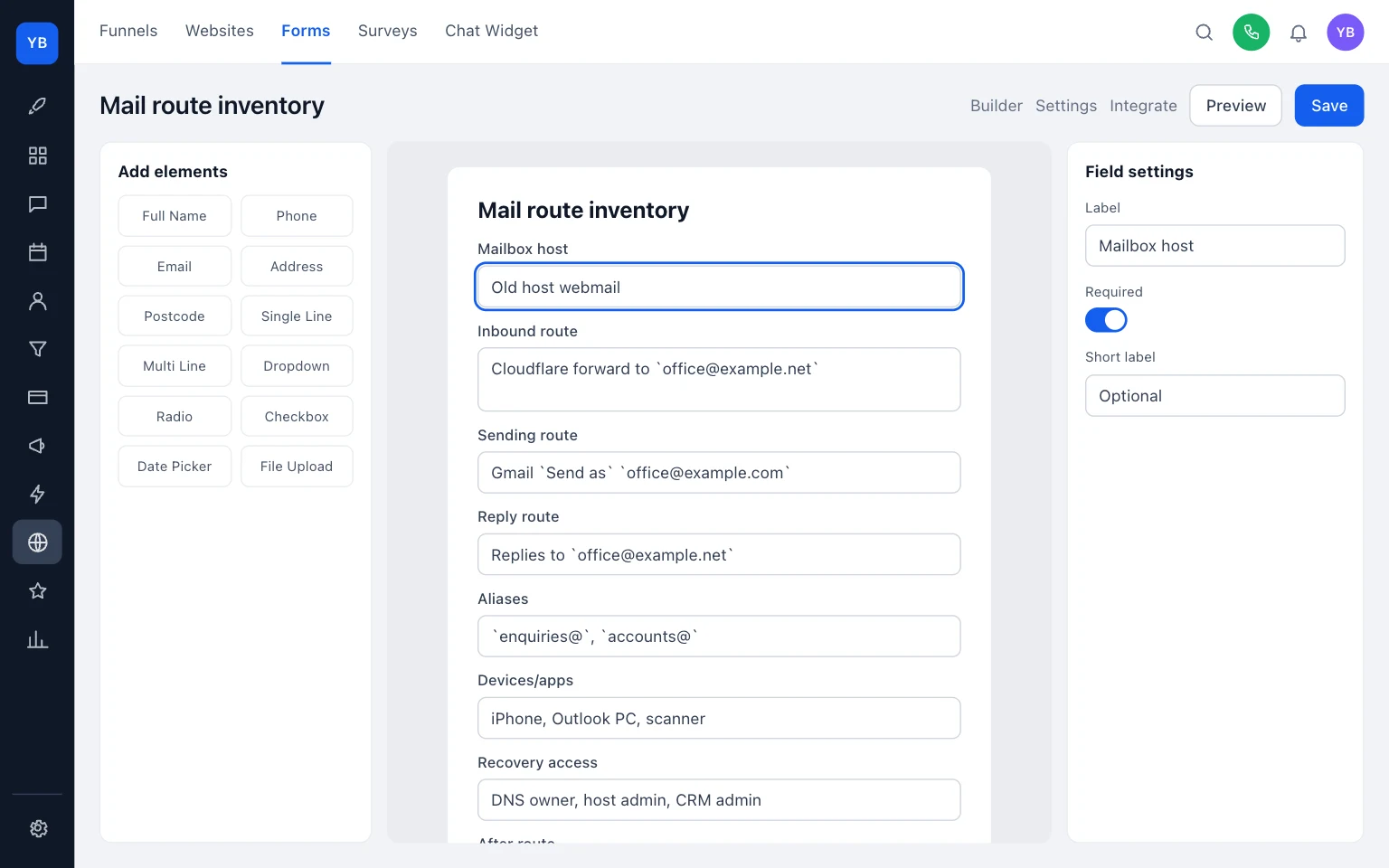
Build a before-and-after mail-route inventory
Do not rely on memory. Build one sheet that shows what works now and what must work after the change. Use it before you touch any settings and again when testing is done.
Scroll sideways to see all columns.
| Item | Before | After | Owner | Test |
|---|---|---|---|---|
| Mailbox host | Where old mail lives now | Keep, move or replace | Named person | Open old folders |
| Inbound route | Current MX or forwarding path | New MX or forwarding path | Named person | Send in from outside |
| Sending route | Gmail, Outlook, CRM or other sender | Planned sender | Named person | Send out test |
| Reply route | Where customer replies land | Planned reply inbox | Named person | Reply to sent test |
| Aliases and shared inboxes | Every live address and alias | What each will do after | Named person | Test each address |
| Devices and apps | Phones, tablets, PCs, mail apps, scanner | Reconnect or retire | Named person | Sign in on each |
| Recovery access | Logins and recovery methods | Confirmed and current | Named person | Can log in |
A good inventory answers one question fast: if office@example.com breaks, which service do you open first?
Examples
enquiries@example.com receives mail through Cloudflare Email Routing and forwards it to owner@example.net. That means Cloudflare is the inbound route, but the actual inbox sits at example.net. If you change only the forwarding rule, you have not moved the stored mailbox because there may not be one there at all (Cloudflare Email Routing rules and addresses).
office@example.com is shown as the From address in Gmail, but the reply path still matters. Google notes that if you change only the From address, replies still go to the original Gmail address by default unless you set a different reply address (Send mail from another address or alias). So your checklist must test where replies land, not just what address customers see.
accounts@example.com is still opened in Outlook on the office PC and Apple Mail on one phone. Gmail supports access from other mail clients using IMAP, and Google notes that some older clients may not support newer sign-in methods (Gmail with other mail clients). That means a successful DNS change is not enough. You still need to confirm each device can connect.
A CRM mailbox can add another layer. HighLevel keeps reply and forward settings separate, and its forwarding address and BCC features only work with Mailgun and LC Email, not other SMTP providers (HighLevel reply and forward settings). So if staff rely on copied replies landing in an inbox, list that separately from the main send route.
List every address, alias and reply rule
Most email problems after a change come from forgotten side routes.
Write down every address that customers or suppliers still use:
- personal mailboxes used for work
- shared addresses such as
enquiries@example.comoraccounts@example.com - aliases that forward into one main inbox
- addresses used on quote forms, invoice templates, van graphics or old paperwork
- copied-reply, forwarding and BCC rules inside your CRM or sending platform
Then separate two checks:
- Can mail arrive at this address?
- If you reply from this address, where do customer replies come back?
Those are not always the same. Gmail Send as and Reply-to settings can change the reply path (Send mail from another address or alias). HighLevel can keep replies visible in Conversations while also forwarding a copy elsewhere, but that behaviour depends on the email service in use (HighLevel reply and forward settings).
If you skip this inventory, a shared address can appear to work because outgoing mail looks right, while replies quietly land in an old inbox nobody is checking.
Check old messages and every device
Trades firms often remember the main inbox and forget the bits around it. List every place the mailbox is opened or used:
- office PC mail app
- owner’s phone
- admin phone or tablet
- shared iPad or workshop device
- laptop used for quoting on site
- copier or scanner that sends PDF attachments
- CRM, calendar or website tools that send notifications
Google’s Gmail help confirms Gmail can sync with other mail clients over IMAP, and some older clients may not support current security methods (Gmail with other mail clients). In plain English: after the change, one person may be able to log in on the web while the old Outlook install or phone app quietly stops working.
Decide now what happens to old mail:
- keep it where it is for now and document how to access it
- import it into the new mailbox if that is the plan
- archive it separately and tell staff where to find it
Whatever you choose, put the location in the inventory. Staff do not care about the method. They care whether last year’s quote thread can still be opened when a customer calls back.

Test the change properly
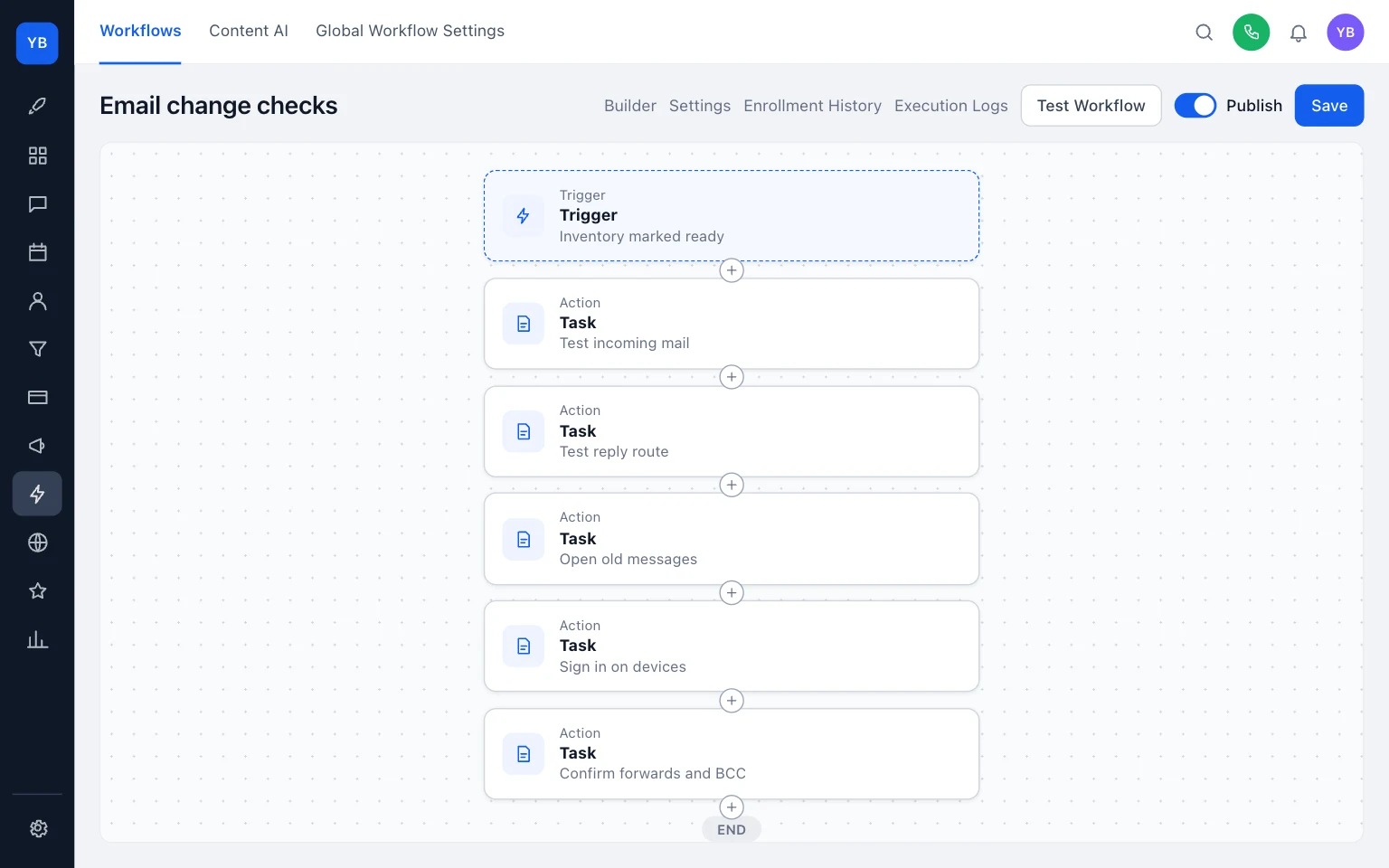
Do not stop at one successful test email. Run an acceptance checklist that matches real work.
- Send a test from an outside address to every live mailbox and alias.
- Confirm each test arrives in the intended inbox.
- Send a reply out from each mailbox or platform staff actually use.
- Reply to that sent message from outside and confirm it lands in the intended inbox.
- Open old folders and message threads where you expect historic mail to live.
- Sign in on every phone, tablet, PC and shared office device.
- Check scanners, copiers and any tool that sends or receives email alerts.
- If you use forwarding-only services, confirm the destination inbox is still verified and receiving mail (Cloudflare Email Routing rules and addresses).
- If you use HighLevel, confirm copied replies, forwarding and BCC behave correctly with the SMTP option you actually use (HighLevel reply and forward settings).
Keep the checklist short enough to use. A two-page document nobody opens is less useful than one sheet that covers incoming mail, outgoing replies and old message access.
What you can do today
Open a note, spreadsheet or CRM form and fill in the inventory for your main addresses first: enquiries@, office@, accounts@ and any personal inboxes used for work. Then test one full route: incoming mail, outgoing reply, reply back, and access to the old thread.
If you want help planning or tidying the setup, start with our business email service, browse the wider guides, or see pricing. Once your inbox route is reliable, the next useful jobs are tightening your lead handling and customer journey: The job pipeline stages a small trades team needs, What to include on a trades service page and How to test an invoice payment link properly.
Keep building your enquiry process
See our guides for trades for the wider picture, explore business email setup with UKTL and check the current package and pricing.
Make it practical
Talk through your own setup.
If the website, local search and follow-up all need joining up, we can walk through how the UKTL setup works for your business.
Book a quick call Explore the relevant service →